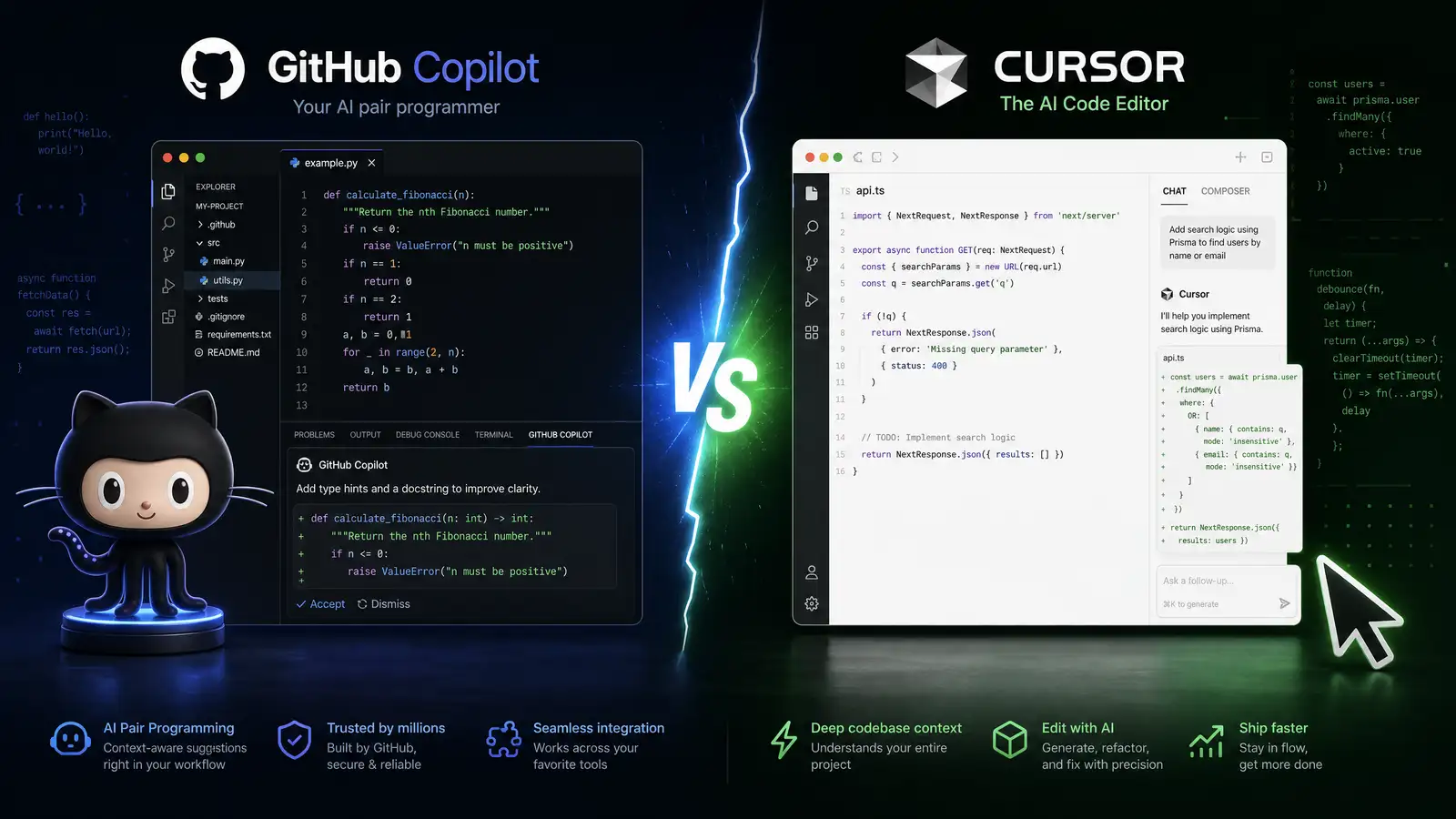
Every developer has an opinion about AI coding assistants now. The two that generate the most debate are GitHub Copilot and Cursor. Both are excellent. Both have passionate advocates. And both have genuinely changed the way millions of developers write code.
But they take fundamentally different approaches. One is an extension that tries to augment every editor you already use. The other is a complete editor rebuilt from the ground up around AI. Understanding that difference is the key to picking the right tool for your workflow.
What They Are
GitHub Copilot is an AI-powered coding assistant from GitHub, built on OpenAI models. It works as an extension inside VS Code, JetBrains IDEs, Visual Studio, and Neovim. Rather than replacing your editor, it layers AI features on top: code completions, a chat sidebar, inline editing, and most recently, Copilot Workspace — an agentic coding environment that can plan, write, and test code across multiple files.
Cursor is a standalone code editor forked from VS Code. Instead of adding AI to an existing tool, Anysphere (Cursor’s creator) built the editor around AI from day one. Every interaction is designed to feel like a conversation with a deeply context-aware coding partner. Cursor supports multiple AI models — Claude, GPT-4, Gemini, and others — and lets you switch between them as needed.
Code Quality and Autocomplete
This is where the rubber meets the road. If the suggestions aren’t good, nothing else matters.
GitHub Copilot uses OpenAI’s models (primarily GPT-4o and specialized models like o3-mini for different tasks). The autocomplete — now called “Copilot Next Edit Suggestions” — has improved significantly since launch. It can predict entire functions, suggest multi-line changes, and understand patterns across your files. The quality is strong, especially for common languages and frameworks.
Cursor gives you a choice of models. Its default is Claude, which has earned a reputation for particularly accurate and context-aware code generation. The “Cursor Tab” autocomplete is widely praised by developers who’ve tried both tools. Because Cursor maintains its own codebase index, the suggestions tend to be more tailored to your specific project’s patterns and naming conventions.
In practice, the gap between them is narrower than you’d expect. Both generate competent code for most tasks. The real difference shows up in more complex, multi-file operations — and that’s where the architecture divergence matters.
Agent Capabilities and Multi-File Editing
This is the battleground in 2026. It’s no longer about autocomplete quality. It’s about whether the AI can handle a feature request from start to finish.
GitHub Copilot Workspace represents GitHub’s answer to agentic coding. You describe what you want, and Copilot plans a series of changes across files, writes the code, runs tests, and iterates. It’s integrated directly into the GitHub ecosystem, so it can create pull requests, request reviews, and tie changes back to issues. The agent mode inside VS Code has also improved, allowing multi-file edits with less manual guidance.
Cursor’s Composer is its multi-file editing feature. You describe a change, and Cursor edits multiple files in parallel, showing you diffs you can accept or reject. The integration is tighter because Cursor controls the entire editor — there’s no extension boundary to work around. Cursor also supports “Rules for AI,” which are project-specific instructions that guide how the AI writes code, follows conventions, and handles edge cases.
Cursor’s agentic workflow feels more fluid for day-to-day development. Copilot Workspace is more powerful for larger, project-level tasks — especially when those tasks need to integrate with GitHub’s issue tracking and pull request workflows.
Editor Experience
If you spend eight hours a day in a code editor, this matters more than anything else.
GitHub Copilot works inside the editors you already use. If you’re on VS Code, the experience is seamless. If you’re on JetBrains, you get a slightly different but still solid experience. The advantage is flexibility — you can use Copilot everywhere. The disadvantage is that it’s fundamentally an extension, which means some of the deeper integrations (like real-time multi-file editing with instant previews) feel bolted on rather than native.
Cursor is VS Code at its core, so all your VS Code extensions, themes, and keybindings work. But the AI is woven into every interaction. Cmd+K brings up inline editing. Cmd+L opens a chat that can reference your entire codebase. The Composer panel lets you describe complex changes across files. Because the AI isn’t an extension, the boundaries between “you editing” and “AI editing” blur in a way that feels natural rather than jarring.
For developers who are happy with their current editor, Copilot is the lower-friction choice. For developers willing to try something new, Cursor’s integrated experience is genuinely compelling.
Privacy and Data Handling
If you’re writing proprietary code, this is a critical consideration.
GitHub Copilot sends your code to OpenAI’s servers for processing. Microsoft offers enterprise options with stronger data controls, but the default configuration does retain some data for model improvement. Many organizations require Copilot’s Business or Enterprise tier to meet their data governance requirements.
Cursor offers a zero-data-retention mode. You can set your project to “private,” and Cursor guarantees that your code is never stored or used for training. This is a significant advantage for teams working on sensitive projects. The trade-off is that some features may be slightly slower because Cursor can’t pre-build certain context caches.
Pricing
GitHub Copilot pricing:
- Free tier: Limited access to basic completions and chat
- Individual: $10/month
- Business: $19/month (includes admin controls and data protection)
- Enterprise: $39/month (includes Copilot Workspace, policy controls, and enterprise support)
Cursor pricing:
- Free tier: Limited AI completions per month
- Pro: $20/month (unlimited basic completions, 500 premium completions, priority support)
- Business: $40/month (admin controls, SSO, usage analytics)
On paper, Copilot Individual looks cheaper at $10 vs Cursor Pro at $20. But the comparison isn’t straightforward. Copilot’s free tier is more limited, and some of its best features (Workspace, advanced agent mode) require the Business or Enterprise tier. Cursor Pro includes more premium completions out of the box.
For individual developers, the practical cost difference is small enough that it shouldn’t be the deciding factor. For teams, the pricing gap is similar — Copilot Business at $19 vs Cursor Business at $40 — but Copilot includes GitHub integration benefits that might justify the higher enterprise tier.
Ecosystem and Integrations
GitHub Copilot wins on breadth. It works in VS Code, JetBrains, Visual Studio, Neovim, and even the GitHub website itself. If you switch editors or work across multiple machines with different setups, Copilot travels with you. The GitHub integration — automatic PR descriptions, issue suggestions, commit messages — is a genuine productivity multiplier for teams that live in GitHub.
Cursor is a single editor. If you need JetBrains for Java development or Visual Studio for .NET, Cursor doesn’t help there. But if you’re a full-stack developer working primarily in JavaScript, TypeScript, Python, or Go, Cursor covers most of your needs in one place.
Who Should Choose What
Choose GitHub Copilot if:
- You use multiple editors (VS Code, JetBrains, Neovim) and want one AI assistant across all of them
- Your team is deeply embedded in the GitHub ecosystem and wants PR/issue integration
- You need enterprise-grade data governance and policy controls
- You’re looking for the most affordable entry point at $10/month
- Your organization already has a GitHub Enterprise license
Choose Cursor if:
- You want the most integrated AI-native editor experience available
- You value having multiple model choices (Claude, GPT-4, Gemini) in one tool
- Data privacy is a priority and you need zero-retention guarantees
- You work primarily in one editor and want AI baked into every interaction
- You’re willing to pay a bit more for a superior developer experience
The Verdict
GitHub Copilot and Cursor are both excellent tools that have legitimately improved how developers work. The choice isn’t about which one is better — it’s about which architecture fits your workflow.
If you’re a solo developer or a small team who wants the best possible AI-integrated editing experience, Cursor’s unified approach is hard to beat. The multi-model support, tighter agentic workflows, and privacy options make it the more compelling standalone choice.
If you’re part of a larger organization that uses multiple editors, relies heavily on GitHub workflows, or needs enterprise data controls, GitHub Copilot’s breadth of integration and ecosystem fit make it the safer bet.
Many developers we’ve spoken with use both: Copilot for general-purpose assistance across their various editors, and Cursor for deep work sessions where they want the full AI-native experience. If your budget allows, that hybrid approach gives you the best of both worlds.